Running Two 15.6-Inch Monitors From One USB-C Cable: The Complete Portable Dual-Screen Setup
The pitch for a dual-screen portable setup is simple: plug one cable into your laptop, get two extra screens. Most of the time it works. When it does not, the reason is almost never the monitor — it is one of four things on the laptop side, and you can check all four before you buy anything.
This is the practical version: what has to be true, where the limits are, and which failures are worth planning around.
What “one cable” actually means
A USB-C port can carry four different things at once: data, video, power, and audio. Running two displays over a single cable means that port is doing video and power simultaneously, and the laptop has to support both on the same port.
Two capabilities have to line up:
DisplayPort Alt Mode — the port can output a DisplayPort signal. Without it, the port is data-only and no monitor will light up.
Power Delivery output — the laptop can *send* power, not just receive it. Plenty of laptops can be charged over USB-C but will only push a trickle outward.
If both are present, one cable is realistic. If only the first is present, you can still run two screens but you will need to power the displays separately.
Two ways to get two screens
There are two genuinely different approaches, and they fail differently.
Stacked dual-screen unit
Two separate portable monitors + hub
Cables to the laptop
One
One (via hub) or two
Cable strain on the laptop port
Single connection point
Same, but the hub takes the wear
Alignment
Fixed at the factory
You adjust it every setup
Redundancy
None — one panel fails, unit is out
One panel can still work alone
Setup time
One motion: unfold, plug, done
Unfold both, position both, plug in
Pack footprint
One object, single case
Two objects plus a hub and cables
Replaceable parts
Whole unit
Per monitor
Best for
People who set up in the same way every day
People who sometimes want one screen, sometimes two
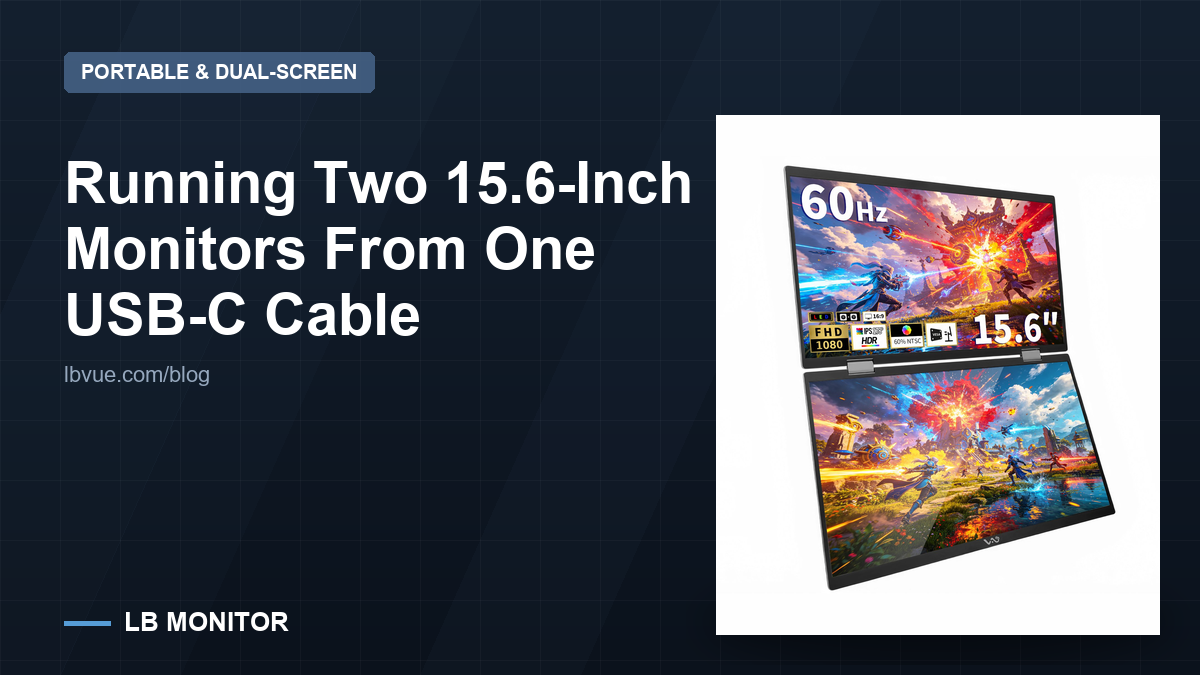
A stacked unit like the LB D16 pairs two 15.6-inch 1080p panels in one folding enclosure, which removes alignment from your morning. A pair of separate monitors such as two LB M16 units gives you flexibility and a fallback if one dies.
Neither is better. The question is whether you value repeatability or flexibility, and how often you actually take it out of the bag.
The power budget is where most setups break
This is the part that surprises people. Your laptop’s USB-C port has a finite amount of power it can send. Two portable monitors draw from that same budget, and the numbers get tight fast.
Typical behaviour when the budget is not enough:
Both screens work, but brightness is capped — the panels negotiate down rather than fail.
One screen works, the second stays dark — the port falls back to a single stream instead of splitting power and lanes.
Screens work, laptop discharge accelerates — the monitors are pulling from the laptop battery rather than the wall path.
Intermittent flicker under load — usually a marginal cable, not a marginal port.
The fix is not a better monitor. It is either a monitor with pass-through charging so the wall charger feeds both, or a powered hub that supplies the displays independently.
Bandwidth: two 1080p screens fit comfortably
The common worry is that one cable cannot carry two displays. In practice, at the resolutions these panels use, it usually can.
Rough data-rate figures for uncompressed video:
Resolution
Refresh
Approx. data rate
1920×1080
60 Hz
~3.2 Gbps
1920×1080
60 Hz (two panels)
~6.4 Gbps
1920×1080
100 Hz
~5.3 Gbps
3440×1440
60 Hz
~6.3 Gbps
3440×1440
100 Hz+
~10.6 Gbps
A USB-C port in DisplayPort Alt Mode typically exposes either two or four high-bit-rate lanes. Two lanes are enough for a pair of 1080p60 panels with headroom; pushing two high-refresh ultrawides over the same single port is where you run out. This is why a dual 1080p portable setup is a safer bet than two high-refresh gaming panels on one cable.
The cable is a real variable
Not every USB-C cable carries video. Cables sold as charging cables frequently wire only the power pins, and a surprisingly large share of cables bundled with phones are USB 2.0 data only.
What to look for:
A cable rated for USB 3.2 or higher data, or explicitly labelled for Thunderbolt or DisplayPort Alt Mode
Short is fine — 0.5 m to 1 m is typical for this use, and longer passive cables are more likely to be marginal
If a cable works for charging but no display appears, swap the cable first before suspecting the laptop
What you give up
Honest downsides of running everything through one port:
1. Single point of failure. One loose connector and both screens go dark at once.
2. Port wear and strain. The whole weight of the display assembly hangs off one small connector. A right-angle adapter or a short pigtail relieves most of it.
3. Nothing left over. That port is now carrying video, power and data. If you also wanted to charge the laptop through it, you need pass-through, and if you wanted a USB drive, you need a hub.
4. Multi-stream quirks. DisplayPort daisy-chaining and multi-stream transport work well on most modern laptops and poorly on a few older ones. Test your exact machine before relying on it.
5. Heat. Two panels in one enclosure plus a laptop port pushing power is more heat than a single monitor. It is not a problem, but do not expect the back of the unit to run cool.
Setup checklist
Run through this in order. Most “it does not work” cases resolve in the first three steps.
1. Confirm the laptop’s USB-C port supports DisplayPort Alt Mode (check the spec sheet, not the port shape).
2. Confirm the port can output power, and note the wattage.
3. Use a cable rated for video, not just charging.
4. Connect the display to the laptop directly with no hub for the first test.
5. If only one panel lights up, check the display settings — the second may be detected but disabled.
6. If brightness is capped, plug the wall charger into the display’s pass-through port if it has one.
7. Once it works, add a hub or dock for anything else you need.
When to pick which
Choose a stacked dual-screen unit if you work in the same posture most days, resent setup friction, and would rather carry one object. Choose two separate portable monitors if you sometimes want a single screen, want a spare if one fails, or need different sizes.
If you are still deciding between screen sizes and portability trade-offs, the portable monitor category lays the options out side by side.
FAQ
Why does only one of my two monitors light up over USB-C?
Usually the port is in a two-lane DisplayPort Alt Mode configuration and the laptop’s firmware is prioritising a single stream, or the power budget only covers one panel at usable brightness. Test with both displays connected directly, no hub, and a video-rated cable before changing hardware.
Do I need a dock to run two portable monitors?
No, not if your laptop’s USB-C port supports DisplayPort Alt Mode and can output enough power. A dock becomes useful when you want to charge the laptop at the same time, or need extra USB ports for drives and peripherals.
Can I run two screens from a port that only supports USB data?
Not for video. A USB-only port can carry data and power but no DisplayPort signal. A DisplayLink-based adapter can add displays over plain USB, at the cost of some latency and extra software.
Is 100 Hz worth it on a portable monitor?
For general work the difference between 60 Hz and 100 Hz is subtle but real — smoother scrolling and cursor movement, less eye strain over long sessions. For gaming it matters more. It does increase the bandwidth you spend per panel, which is worth remembering if you plan to drive two of them from one port.